01 Quantities and Measurement

Relative Velocity Simulation

0 m/s

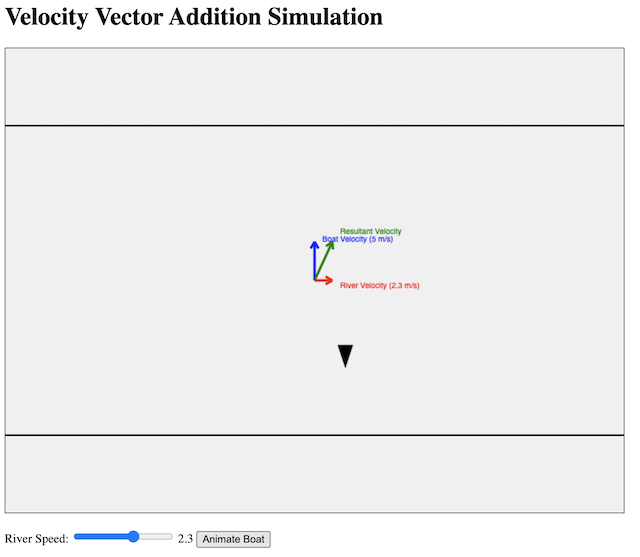
In yet another demonstration of ChatGPT 4o’s capabilities, I generated the above simulation app without writing a single line of code myself: https://physicstjc.github.io/sls/relative-velocity/index.html

The process took 4 prompts.

Prompt 1: Create a javascript simulation in a single html file that demonstrates the addition of two velocity vectors to give a resultant velocity. The velocity of a boat travelling in still water moving across a river is shown as vertically upward. A slider will change the speed and direction of the water flow. The velocity of the river water is also shown. Finally, show the addition of the two vectors to give a third vector: the resultant velocity. Create a button for animating the boat’s movement.

Response: Here’s an HTML file with embedded JavaScript to create a simulation of the addition of two velocity vectors. This simulation includes a slider to adjust the speed and direction of the river flow, and a button to animate the boat’s movement. (Code is not included to avoid making this post too long.)

Prompt 2: Use two horizontal lines to show the shores of the river, also the starting and ending point of the boat’s journey. The boat should be represented with a pencil-like shape, moving upward from one horizontal line to another. The boat should be moving in the direction of the resultant velocity. The vectors should be represented with arrows, not just lines.

Response: Here’s the updated HTML file with the specified features:

Two horizontal lines representing the shores of the river.
A pencil-like shape representing the boat, moving from one shore to the other in the direction of the resultant velocity.
Arrows to represent the vectors.

Prompt 3: Very good! Now invert the shape of the boat vertically. Also, draw some light blue wavy curves between the two horizontal lines that are stationary when the river speed is zero but move at the river velocity otherwise.

Response: Here’s the updated HTML file with the specified changes:

The boat shape is inverted vertically.
Light blue wavy curves are drawn between the two horizontal lines to represent the river water. These waves are stationary when the river speed is zero but move at the river velocity otherwise.

Prompt 4: Keep the canvas to 640 pixels wide and 480 pixels tall. Resize everything else accordingly.

And what you see in the beginning of this post was the result.

Vector Addition

I made some refinement to an applet created last year to demonstrate how vector addition can be done either using vector triangle or parallelogram methods.

To access directly in Geogebra, the link is https://www.geogebra.org/m/p2yvdsvs

Unit Conversion Self-Practice

This new applet is designed for students to practise conversion of common units used in physics on their own. There is a checking algorithm within, which might need some fine-tuning. For full screen view, click here.

The worked solutions given will demonstrate the breakdown of steps that could help students learn the procedure to convert these units.

Standard Form and Prefixes

This little applet is designed to allow students to change the order of magnitude and to use any common prefix to observe how the physical quantities are being written. To view this applet in a new tab, click here.

Standard form (also known as scientific notation) is a way of writing very large or very small numbers that allows for easy comparison of their magnitude by using the powers of ten. Any number that can be expressed as a number, between 1 and 10, multiplied by a power of 10, is said to be in standard form.

For instance, the speed of light in vacuum can be written as 3.00 × 10⁸ m s–1 in standard form.

When a prefix is added to a unit, the unit is multiplied by a numerical value represented by the prefix. e.g.     distance = 180 cm = 180 x 10-2 m = 1.80 m

The purpose of using prefixes is to reduce the number of digits used in the expression of values. Hence, students can use the prefix slider to find a user-friendly expression, such as 682 nm instead of 0.000000682 m.

The ten prefixes used are:

10-12pico
10-9nano
10-6micro
10-3milli
10-2centi
10-1deci
103kilo
106mega
109giga
1012tera

Micrometer Screw Gauge – Self-Practice GeoGebra Applet

After completing the vernier calipers applet, I simply had to do a similar one for the micrometer. However, this was a lot more complex as the thimble’s numbers are supposed to be “rotating” rather than moving linearly. A lateral movement of the thimble had to be coupled with a vertical movement of the rotating scale, with the corresponding numbers on the scale constantly changing with each new problem.

Students will need to make readings when the spindle is closed and when open to measure an object before subtracting the zero error and keying in the answer for the actual measurement. The answer will be checked for accuracy, although not for the correct number of decimal places because I have not figured out a way to programme that check yet.

To access the applet in fullscreen, go to https://www.geogebra.org/m/qedrwymk. To embed into SLS, you may use this code:

<iframe scrolling="no" title="Micrometer with zero error" src="https://www.geogebra.org/material/iframe/id/qedrwymk/width/640/height/480/border/888888/sfsb/true/smb/false/stb/false/stbh/false/ai/false/asb/false/sri/false/rc/false/ld/false/sdz/false/ctl/false" width="640px" height="480px" style="border:0px;"> </iframe>

Vernier Calipers – Self-Practice GeoGebra Applet

The aim of this applet is to help students who just learnt about zero errors in vernier calipers to get some practice of their own. Students just have to key in their answer into the textbox and they will know if they got it correct.

To modify later: an option to give the correct answer if the student asks for it.

I have not figured out how to ensure that the input is expressed in 2 decimal places, so if any expert is able to advise, I will be glad to try it out.

To access the applet in fullscreen, go to https://www.geogebra.org/m/jybrnwgp. Meanwhile, the applet is embeddable in SLS using the following iframe code.

<iframe scrolling="no" title="Vernier calipers with zero error" src="https://www.geogebra.org/material/iframe/id/jybrnwgp/width/640/height/480/border/888888/sfsb/true/smb/false/stb/false/stbh/false/ai/false/asb/false/sri/false/rc/false/ld/false/sdz/false/ctl/false" width="640px" height="480px" style="border:0px;"> </iframe>

Credits to Abdul Latiff for the original applet which I modified to add the zero error readings.